AUDIO TO MIDI / LAYER A MELODY
Audio to MIDI for layering a melody
Convert a clear melody to MIDI, review its notes, then render the same MIDI with two sounds. Align the two audio files before mixing. These sounds are synthesized; they do not recover the original recording.
Quick answer. In our eight-note control, Soft sine and Bright harmonics renders came from one MIDI file. Both WAV-to-MIDI downloads returned the eight programmed pitches, but their fifth and eighth note starts differed by 0.022917 seconds. Check timing before stacking separate conversions.
Watch the layering walkthrough: a short English explanation of the two renders, the measured note starts and the separate local mix.
Build a second sound from one checked melody
A MIDI file contains note instructions. A synthesizer uses those instructions to generate audio. To layer a melody, place two versions on separate tracks so they start together, then listen for timing or pitch differences. Keep the source recording and the unedited MIDI while you compare.
-
Start with a clear melody
Choose a solo recording you are allowed to process. Use the audio-to-MIDI converter, choose the source BPM if you know it, and inspect the note names and starts. Midilot follows one dominant melody; it does not isolate an instrument from a full mix or transcribe chords.
-
Keep one MIDI as the reference
Save the reviewed file before changing sounds. If you use the same MIDI events for both renders, the programmed pitch and timing instructions are the same at the input. Sound envelopes and export tails can still differ.
-
Render each sound
Open MIDI to MP3 / WAV, choose the MIDI, select a sound, convert, and download WAV. Repeat with the second sound. Midilot currently offers Soft sine and Bright harmonics; they are synthesized tones rather than samples of a recorded instrument.
-
Align and combine the audio
Import the two WAVs into an editor or DAW, line up their starting points and adjust their levels. Check the result on playback and leave headroom. Midilot's renderer exports each sound separately; the combination below was made locally with a separate script.
What the two actual conversions returned
A controlled eight-note phrase
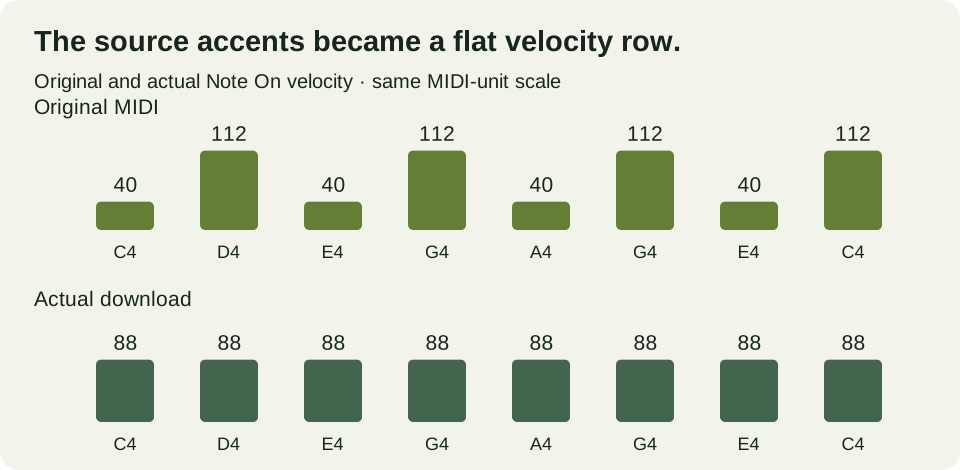
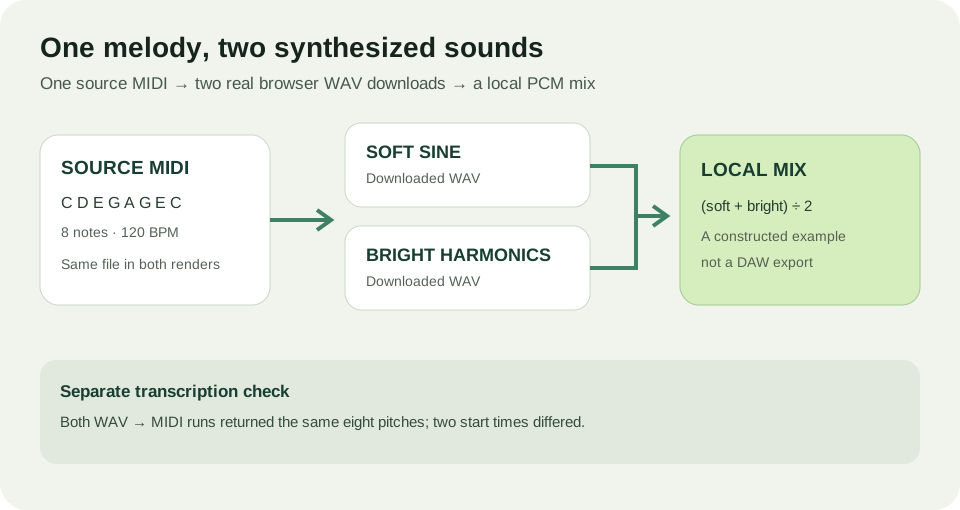
On 5 November 2026 we used the renderer's “Try original sample” control, which loads the site's reference MIDI. Its eight pitched events are C4, D4, E4, G4, A4, G4, E4 and C4. The MIDI contains 480 ticks per quarter note and a 500,000-microsecond tempo event: 120 BPM. The programmed starts are 0.0, 0.5, 1.0, 1.5, 2.0, 2.5, 3.0 and 3.5 seconds; each key release is 0.375 seconds after its start.
We rendered that same sample once with Soft sine and once with Bright harmonics on the live MIDI-to-audio page. Each actual WAV download contains 96,469 mono PCM frames at 22,050 samples per second: 96,469 ÷ 22,050 = approximately 4.375011 seconds. This includes the renderer's allocated half-second buffer after the final programmed release; file duration alone does not measure how long the sound is audible.
We selected each downloaded WAV separately on the live WAV-to-MIDI page with the BPM field set to 120 and the optional final-release estimate enabled. After conversion we downloaded both MIDI files and independently read the note events from their bytes. Each file contains eight notes in the programmed pitch order. Their hashes differ, so the two downloads are not byte-identical.
Two note starts changed
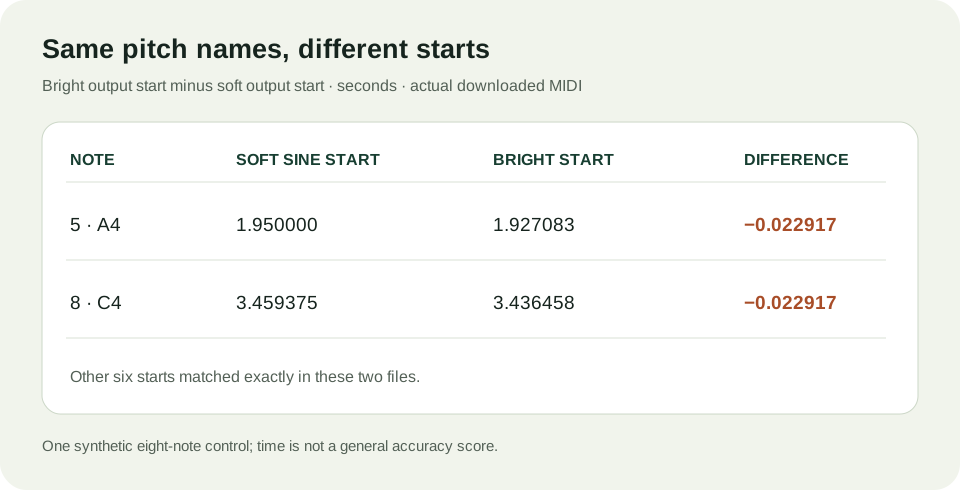
In the Soft sine output, A4 begins at 1.950000 seconds and the final C4 at 3.459375 seconds. In the Bright harmonics output, those starts are approximately 1.927083 and 3.436458 seconds. For each of those notes, bright start − soft start = approximately −0.022917 seconds. The other six output starts match exactly in these files. Matching pitch names therefore did not make the two transcriptions identical.
Both outputs also start several notes early relative to the programmed MIDI. For the eight corresponding pitches, mean absolute onset error is sum of |returned start − source start| ÷ 8: approximately 0.049089 seconds for Soft sine and 0.054818 seconds for Bright harmonics. The inputs, all eight error values and exact event times are in the data record below. This calculation describes the constructed phrase and this converter run; it does not rank sounds or predict the accuracy of a vocal or full song.
These results compare two separate audio-to-MIDI conversions. They do not show that choosing a different playback sound changes notes inside one unchanged MIDI file. The original MIDI used for our two renders was the same file; the note differences appeared in the separate transcriptions of the rendered WAVs.
A combined WAV from the two renders
To make a concrete layering example, we combined the two browser-downloaded WAVs locally, sample by sample. For each signed 16-bit sample, the mix uses round((soft sample + bright sample) ÷ 2). Both WAVs have the same sample rate and frame count, so no resampling or offset was introduced. The resulting WAV has 96,469 frames at 22,050 Hz, approximately 4.375011 seconds. Its largest absolute sample is 4,914, below the signed 16-bit positive limit of 32,767.
The arithmetic mean provides a reproducible combined file for this one pair. It does not replace balancing levels in a DAW, and we did not test a DAW import or claim that the site mixes tracks. The two constituent WAVs, the local mix and both MIDI results can be downloaded independently to inspect the difference.
Question before layering
Does changing the sound change the MIDI notes?
Editorial question. Using a different sound to render the same unchanged MIDI does not edit that source file. Our two renders came from one reference MIDI. When we transcribed those two WAVs separately, both output pitch sequences matched the source, while two starts differed between the outputs. Review the downloaded events before treating separate transcriptions as synchronized layers.
What this example cannot establish
The source is a programmed eight-note melody rendered by two synthesized settings in one desktop browser. It contains no singer, room sound, chords, overlapping instrumental parts or percussion. The two settings use the same renderer and a known MIDI file, so this is not a test of separating a finished song or reproducing its original instrument. The final-release option is an estimate; disable it if a fade belongs to the performance. Use the source audio as the reference and adjust pitch, onset and duration by ear or in an editor before committing a layer.
For more on preparing and checking a transcription, read the audio-to-MIDI guide. For aligning beats and seconds, see the tempo-matched loop test.