AUDIO TO MIDI / A CHECKABLE WORKFLOW
How to convert audio to MIDI
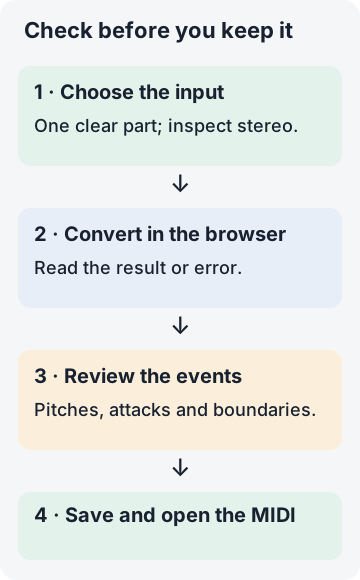
Choose one audio file in Midilot, select Convert to MIDI, inspect the detected notes, then select Download MIDI. Start with an isolated melody. Midilot creates an editable note draft locally in your browser; it does not preserve the recording’s sound or separate a complete arrangement into instruments.
Use one file up to five minutes long. A successful download is the start of note review, not proof that the recording has been transcribed correctly.
From a recording to an editable note file
Pick the part you want to recover
Choose a permitted recording with one clear pitch line. A stereo file does not necessarily contain two separable instruments, and a quiet backing part can still overlap the melody. For a first run, use one of our synthetic reference WAVs below so you know what entered the converter.
Select a complete audio file
Open the converter, choose Choose an audio file, and confirm the filename. The picker accepts MP3, WAV, FLAC, OGG, M4A and AAC; the browser must be able to decode the file’s actual encoding. Renaming an extension does not re-encode the sound. This step uses the browser’s complete-file audio decoder.
Convert and inspect the result
Select Convert to MIDI. If Your MIDI notes appears, read the note names together with their starts and lengths. Listen to the source as you check repeated attacks and overlapping notes. If the converter stops, use the error message to choose a troubleshooting step below.
Download, then check the saved file
Select Download MIDI and check your browser’s downloads. Open the saved .mid file in your MIDI editor and choose a playback instrument. Keep the original recording beside the draft so you can compare pitch, attack and release before arranging or creating notation.
Practice with three original input checks
These checks use our generated tones and archived production results. They describe specific synthetic inputs, not accuracy on singing, instruments or songs. Their measurement dates belong to the original runs; the downloads let you inspect the same evidence.
CHECK A · MATCHING STEREO CHANNELS
A note appears, but inspect its ending
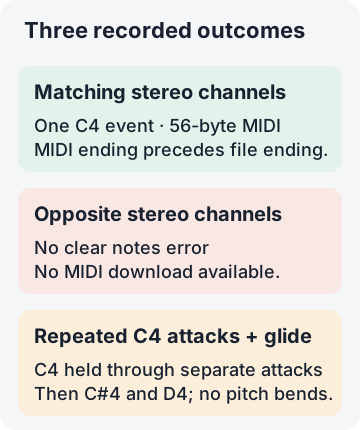
Our matching-channel WAV contains one second of a programmed C4-reference tone at 261.625565 Hz, with short fades. Both channels contain exactly the same samples. In the production Chrome run on 17 October 2026, the downloaded file contained one C4 event starting at 0 seconds and ending at approximately 0.835417 seconds. The note list displayed a length of 0.84 seconds because it rounds the value.
The one-second input window extends beyond that MIDI event: 1 − 0.835417 ≈ 0.164583 seconds. The displayed calculation rounds the exported end to six decimal places; the raw record retains full precision. This measures the gap between the file’s end and the exported event’s end; it is not a universal note-release correction. The file includes a fade, and your recording needs its own listening check. The MIDI has 56 bytes and is available below together with the exact input definition and event list.
CHECK B · OPPOSITE STEREO CHANNELS
No notes can be an input-signal problem
The second WAV keeps the same left-channel tone and reverses every right-channel sample. In the same production check, it returned “No clear melody notes were detected. Try a clean, louder single-note recording.” The result panel stayed hidden, so there was no MIDI file to download. We provide the failed input and its recorded message rather than an invented empty output file.
Midilot’s current implementation averages the channels before estimating pitch. For this constructed pair, every averaged sample is zero: (x + (−x)) / 2 = 0. Independent sample inspection confirmed an averaged PCM peak of zero, versus 16,383 for the matching pair. Increasing both channels by the same gain still gives (g × x + g × (−x)) / 2 = 0. That is why a generic “make it louder” response does not address this exact example.
Before retrying a real stereo recording, compare its individual channels with the mono sum in an audio editor. Selecting an appropriate channel is different from expecting Midilot to separate instruments. This test does not establish that cancellation caused a failure in your recording.
CHECK C · REPEATED ATTACKS AND A GLIDE
A matching pitch label can hide merged notes
Our separate two-second synthetic input begins with C4 pulses at 0, 0.4 and 0.8 seconds. Each pulse lasts 0.3 seconds. A continuous upward glide follows from 1.2 to 2 seconds. The production voice-page run on 16 October 2026 produced a 73-byte MIDI file with three notes: C4, C#4 and D4. It did not produce three separate C4 attacks.
Independent MIDI inspection found one C4 event from 0 to approximately 1.323958 seconds, followed by C#4 until 1.718750 seconds and D4 until 1.834375 seconds. Displayed times use six decimal places; exact events remain in the raw record. There were no pitch-bend messages. The continuous glide has no single correct discrete note count, so three exported notes are not an accuracy score. The useful finding is that the three programmed C4 attacks were not preserved as three C4 note-on events.
For this input, checking only “does C4 appear?” would miss the attack problem. Count the repeated C4 onsets separately from the glide, then compare the event boundaries with the source. Splitting a long note in an editor is a review step; changing the input filename or the playback instrument cannot reconstruct the missing attacks inside the exported file.
Choose the next step from what happened
| What happened | What to check next |
|---|---|
| The browser cannot decode the file | Export a complete supported audio file. Selecting a filename or changing its extension is not successful decoding. |
| No clear melody notes were detected | Check the pitched part and the mono signal. The opposite-channel fixture above is one reproducible example, not a diagnosis of every failed recording. |
| The file downloads, but notes sound wrong | Compare pitch, separate attacks and note boundaries with the recording. File validity does not check musical correctness. |
| Only one line appears from a full mix | This converter estimates one dominant pitch line. It does not return a complete set of instrument stems or simultaneous chord notes. |
Do not mistake export settings for measured performance
The current converter writes one MIDI track, a 120 BPM tempo event, fixed note velocity 88 and 480 ticks per quarter note. Those values come from our implementation and downloaded files; they are not detected tempo, performed loudness or a recovered arrangement. Compare actual event times before snapping the draft to a DAW grid. A valid MIDI header does not establish that those events represent the recording correctly.
For an MP3-specific walkthrough with the same source encoded in different formats, use the MP3 to MIDI tutorial. The audio tutorial here focuses on input signal and result checks; the format comparison keeps its original measurements and date.
Questions about turning audio into MIDI
How can I convert audio to MIDI online for free?
Use the browser converter linked at the top, select your file, run the conversion and download the note draft. Midilot does not require an account for this workflow and processes the recording locally. Review the result before using it; free browser access does not establish transcription accuracy.
Does converting audio to MIDI keep the original voice or instrument sound?
No. The exported file contains note events. Choose a playback instrument in your editor to hear them. Preserve the original audio separately when you need the recorded sound.
Can I recover the jazz chords in a whole song?
This Midilot converter is not a complete chord or multi-instrument transcription method. Its single dominant-pitch output cannot be treated as every simultaneous note. The original chord check shows a concrete failure to reproduce the programmed chord input.
Can I start with a YouTube link instead of an audio file?
The separate YouTube to MIDI page accepts a link and uses a user-approved tab-audio sharing step in a supported desktop browser. It does not automatically download video audio. Use an audio file in the normal converter when you already have an appropriate recording.
Can I turn the MIDI into sheet music?
Check the notes first, then use MIDI to sheet music. A readable staff reflects the MIDI events you supplied; it does not independently correct missing pitches or merged attacks. The audio to sheet music guide explains that extra step.
Keep the source recording, the saved MIDI and your note corrections together. They answer different questions: what was recorded, what was exported and what you changed.